You know that sinking feeling.
You’re cleaning up old WhatsApp chats. Deleting a few useless messages. Then suddenly—tap. The wrong message disappears.
Maybe it was an important work instruction.
Maybe a personal message you wanted to keep.
Either way… it’s gone.
Your first instinct? Scroll through the chat again. Maybe it’s just a glitch. Maybe it’ll magically reappear.
Sadly, it usually doesn’t.
But here’s the good news: in 2026, “deleted” doesn’t always mean gone forever.
WhatsApp now relies on several backup systems. Your phone may also store temporary data that can help restore lost chats. If you act quickly, there’s a good chance you can recover deleted WhatsApp messages.
In this guide, I’ll walk you through the methods that actually work in 2026.
You’ll learn how to recover deleted WhatsApp messages using backups, system files, and a few built-in tricks.
But before we jump into the steps, there’s one important rule you need to understand.
The “Golden Hour” Rule: Why You Must Act Fast
Think of your phone’s storage like a chalkboard.
When a message gets deleted, it isn’t wiped instantly. Instead, your phone simply marks that space as available for new data.
That means your message may still exist… temporarily.
But the moment you keep using your phone—taking photos, installing apps, downloading files—new data can overwrite that space.
Once that happens, recovery becomes much harder.
So timing matters. A lot.
The first thing you should do:
Turn on Airplane Mode as soon as you notice the message is gone.
This stops new data from syncing and prevents your phone from overwriting the deleted message. Think of it as freezing the chalkboard before anything new gets written on it.
A simple step. But it can make all the difference.
Method 1: Restore from Google Drive or iCloud Backup
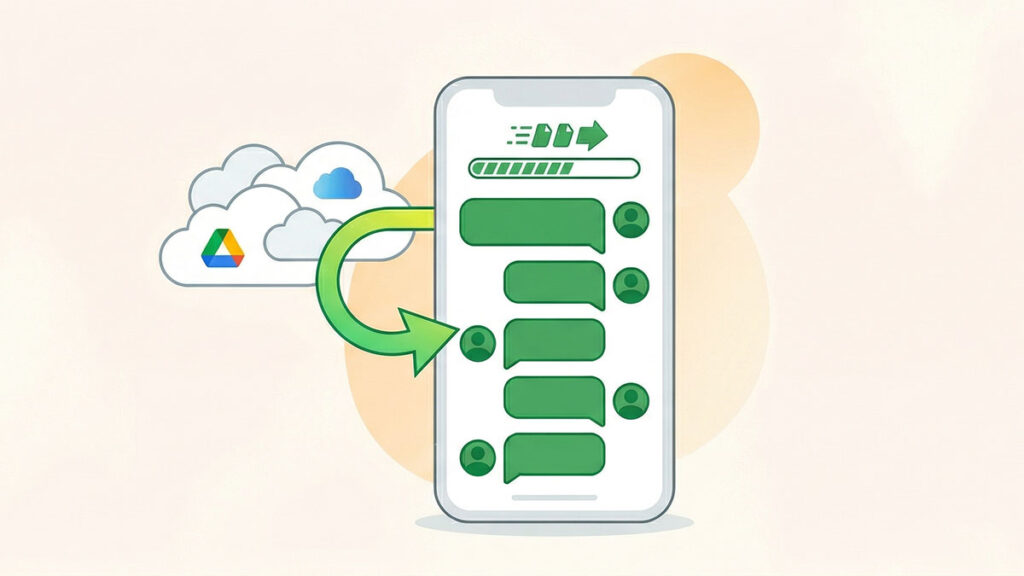
This is the most reliable method for most people.
If you use WhatsApp regularly, chances are your chats are already backed up to Google Drive (Android) or iCloud (iPhone). Many users have automatic backups enabled without even realizing it.
And in 2026, WhatsApp backups are faster and more frequent than before. Some phones even create daily backups automatically.
So before trying anything complicated, start here.
Step 1: Check If a Backup Exists
Before uninstalling WhatsApp, you should first confirm that a backup is available.
Here’s how to check:
Now compare that time with when the message was deleted.
If the timing works in your favor, you can restore the chat using the backup.
Step 2: Restore the Backup
Once you confirm the backup exists, follow these steps carefully.
After a few minutes, your chats should start reappearing.
Important Tip:
During the setup process, WhatsApp will only ask about restoring once.
If you skip the Restore option, you cannot go back later and restore the backup without uninstalling the app again.
So take a moment, read the prompt carefully, and make sure you tap Restore when it appears.
Method 2: The Android Local Backup Trick (No Cloud Needed)
What if your Google Drive backup is outdated?
Or maybe you don’t use cloud backups at all?
Don’t worry—Android has a hidden advantage.
Your phone quietly creates a local backup every night (usually around 2:00 AM). These backups are stored on your device and typically kept for about 7 days.
That means your deleted messages might still be sitting safely in one of those files.
How This Trick Works
Think of it like a time machine for your chats.
Instead of restoring the latest backup, you manually pick an older backup file—from before the message was deleted—and force WhatsApp to use it.
Step-by-Step: The “Rename” Strategy
To do this, you’ll need a File Manager app.
Most Android phones (like Xiaomi, Realme, or Samsung) already have one built in.
Now follow these steps:
What Happens Next?
WhatsApp will scan your local storage, find the file you just renamed, and treat it as the latest backup.
As a result, your chats will be restored from that specific date—bringing back messages you thought were lost.
Quick Tip
This method works only if:
If both conditions are met, this trick can be a lifesaver.
Method 3: Use Android 16’s Notification History
Ever seen this on WhatsApp?
“This message was deleted.”
And instantly thought—what was it?
Yeah… that curiosity hits hard.
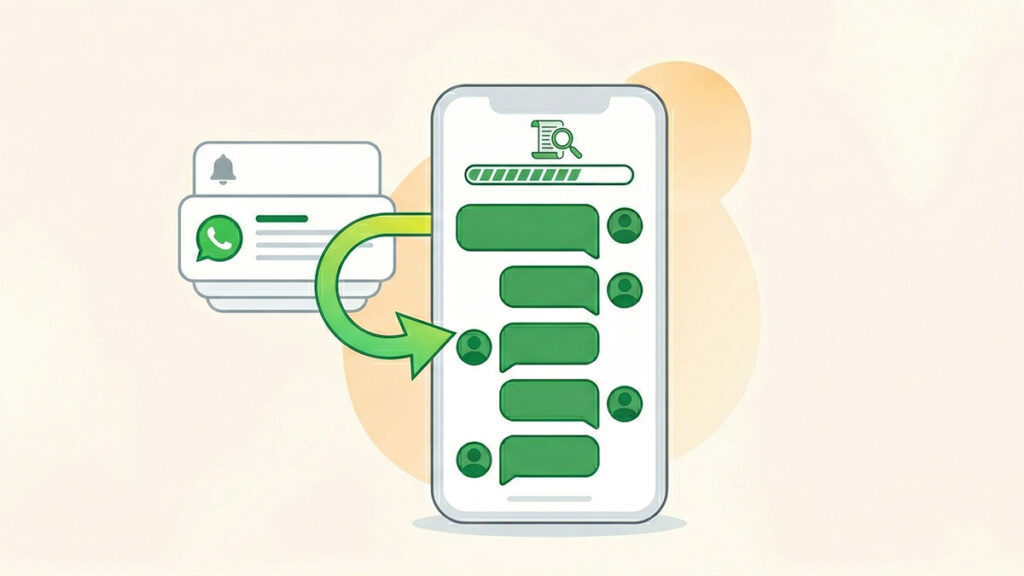
The good news? If you’re using Android 16, you can often still see that deleted message—thanks to Notification History.
How This Trick Works
Every time you get a WhatsApp message, it shows up as a notification.
Android quietly records those notifications, including the message text.
So even if the sender deletes the message later, the notification log may still have it.
Think of it as a behind-the-scenes record of what popped up on your screen.
How to Enable and Use Notification History
Follow these steps:
Once enabled, your phone will start saving incoming notifications.
Now, whenever you want to check a deleted message:
You’ll often see the actual message text, even if it was deleted later.
Important Limitations
This method is super useful—but not perfect.
Still, for most deleted texts, this can feel like a lifesaver—especially when curiosity gets the better of you.
Method 4: Check Your Linked Devices (WhatsApp Web/Desktop)
Here’s something most people forget.
WhatsApp isn’t just on your phone anymore. If you’ve used WhatsApp Web or the desktop app, your chats are also synced to your laptop or PC.
And sometimes… that sync isn’t instant.
Why This Trick Works
There can be a small sync delay between your phone and your linked device.
So if a message gets deleted on your phone, your laptop might still show the old version—at least for a short time.
Think of it like a lagging mirror. Your phone updates first, but your computer takes a moment to catch up.
That small delay is your window.
What You Should Do
If you’ve just lost a message, act fast:
If you see it:
Important Tip
This method only works for a short time.
Once your computer syncs with your phone, the deleted message will disappear there too.
So speed matters here. If you’re quick, you might recover the message before it’s gone for good.
Method 5: Recover Photos and Videos (The Media Folder)
Sometimes, it’s not about the messages.
You just want that one photo back.
Or a video someone sent you.
Here’s the good news: on Android, media files are often saved separately from chats. So even if the conversation is gone, the file might still be sitting safely on your phone.
Why This Works
When someone sends you a photo or video on WhatsApp, your phone usually downloads and stores it locally.
Deleting the chat doesn’t always remove those files.
So while the message may be gone… the media might still be there.
Where to Look
Grab your File Manager and follow this path:
Internal Storage > Android > media > com.whatsapp > WhatsApp > Media
Inside this folder, you’ll see different categories like:
Open the relevant folder and browse through the files.
Don’t Miss This
Also check the “Sent” folder inside these directories.
This is where WhatsApp stores media you sent to others.
So if you shared a photo and lost it later, there’s a good chance it’s still there.
What to Expect
You might be surprised.
Even if the chat looks completely empty inside WhatsApp, the photo or video could still be sitting in your storage—quietly waiting to be found.
A simple check. But often, it does the job.
The Truth About Third-Party Recovery Apps
If you Google “how to recover deleted WhatsApp messages 2026”, you’ll see tons of tools claiming “Recover messages from years ago”, “One-click solution”, or “100% guaranteed recovery”.
Sounds tempting, right?
But here’s the honest truth.
Most of these tools don’t actually work.
Why These Apps Usually Fail
WhatsApp uses end-to-end encryption.
That means your messages are locked and scrambled, and only your device has the key to read them.
So unless a tool can access that key (which it usually can’t), it cannot properly recover your chats.
In many cases, these apps are just basic file scanners, or fancy versions of the same local backup tricks you already learned.
Nothing magical. Just better marketing.
Should You Use Them?
In most situations, no.
You could end up spending money… and still get nothing back.
Don’t waste your money on expensive software unless you have tried every other method stated here first.
Common Myths vs Reality (2026)
There’s a lot of bad advice floating around online when it comes to recovering WhatsApp messages.
Let’s clear things up—quick and simple.
Myth: “WhatsApp Support can recover your messages”
Reality: They can’t.
WhatsApp uses end-to-end encryption, and they don’t store your chats once they’re delivered.
That means even WhatsApp itself cannot access or restore your messages.
Myth: “You can recover messages from a lost phone”
Reality: Only if you had a backup.
If your chats were backed up to Google Drive or iCloud, you can restore them on a new device.
But if there was no backup, the data is gone with the phone. No workaround.
Myth: “Secret dial codes can recover deleted messages”
Reality: Total scam.
There’s no hidden code, no shortcut, no hack.
These tricks are either fake or designed to mislead you.
How to Never Lose a Message Again (Future-Proofing)
Actuallly, the easiest way to recover a message… is to never lose it in the first place.
A few small settings can save you from a lot of stress later. Here’s a simple “pro setup” for 2026 that just works.
These steps take just a few minutes to set up.
But once they’re in place, you won’t have to worry about losing important messages again.
A little prevention now… saves a lot of frustration later.
Final Thoughts
Losing WhatsApp messages can feel stressful. But the good part? You still have options.
If you’re not sure what to do next, use this quick guide:
Don’t wait for the next mistake.
Take 30 seconds right now and enable daily backups.
That one small step can save you hours of stress later.
If you got your messages back—nice. That’s a win.
If you’re stuck (especially with the rename method), feel free to reach out or drop a comment. I’ll help you figure it out.