It’s late. The lights are dim. You’re trying to type… and suddenly the keys feel invisible.
If you’re searching for how to turn on keyboard backlight, you’re probably stuck in that exact moment. The good news? In most cases, it takes just one key combo to fix it.
A keyboard backlight is the light underneath your keys that helps you type comfortably in low-light conditions. It’s common on modern laptops — especially premium and gaming models. But here’s the catch: every brand enables it a little differently.
Some use a simple Fn shortcut.
Others require BIOS settings.
MacBooks handle it in their own way.
In this guide, you’ll learn:
By the end, you’ll know exactly how to activate backlit keyboard settings on your device — without guessing.
Let’s start by understanding what a backlit keyboard actually is — and how to check if your laptop even supports it.
What Is a Backlit Keyboard?
A backlit keyboard is a keyboard with lights underneath the keys. These lights make the letters visible in low light or dark rooms.
Simple. Helpful. Very common on modern laptops.
How It Works
Small LED lights sit under the keys. When you turn on the keyboard light, those LEDs illuminate the key symbols.
You can usually:
Types of Keyboard Lighting
Most laptops use one of these:
How to Check If Your Laptop Supports It
Before trying to enable backlit keyboard settings, confirm your laptop has the feature:
No icon + no mention in specs? It likely doesn’t support it.
How to Turn On Keyboard Backlight (Quick Methods That Work on Most Laptops)
If your laptop supports it, turning on the keyboard light usually takes 5 seconds.
In most cases, you don’t need to open settings or BIOS. A simple key combination does the job.
Let’s start with the most common method.
Using Keyboard Shortcut (Most Common Way)
Almost every laptop brand uses a Function (Fn) key combination to enable the backlit keyboard.
Step 1: Find the Backlight Key
Look at the top row of your keyboard (F1–F12).
Search for a small keyboard icon with light rays shining upward.
That’s your backlight key.
It’s commonly found on:
Step 2: Press the Correct Combination
Now press:
Fn + Backlight Key
For example:
If nothing happens, try pressing the backlight key alone (some laptops don’t require Fn).
Each press usually cycles through:
Quick Brand Variations (Short Reference)
Here’s how some popular brands handle it:
The exact key depends on your model, but the icon is the easiest way to identify it.
Pro Tip:
If you don’t see any keyboard light icon on the function keys, your laptop may not have a backlit keyboard.
How to Enable Backlit Keyboard on Windows Laptops
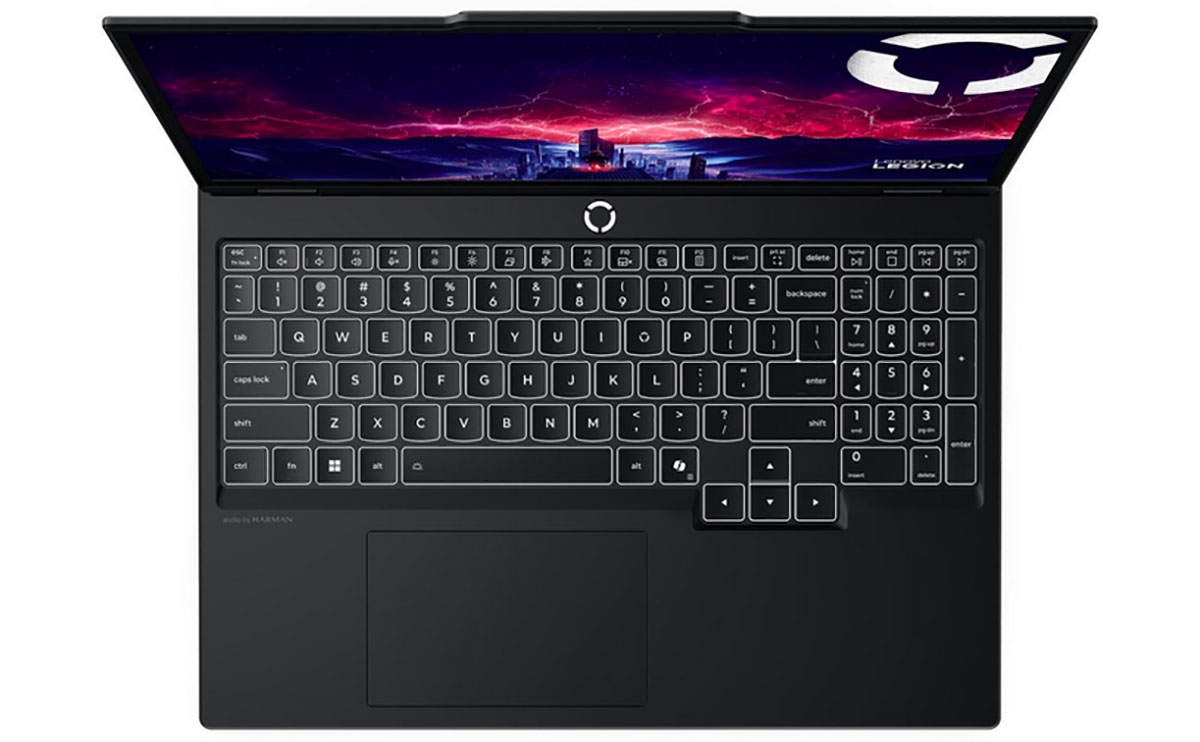
On Windows laptops, keyboard lighting is usually controlled by the manufacturer — not directly from Windows settings.
If the quick shortcut didn’t work, here are the proper ways to enable the keyboard light.
Method 1: Using Keyboard Shortcut
This is still the most reliable method on Windows devices.
Steps:
Some laptops don’t require the Fn key — try pressing the key alone if needed.
Method 2: Using Windows Mobility Center
Some Windows laptops (especially older Dell, HP, and Lenovo models) allow you to control keyboard lighting from the Windows Mobility Center.
How to Open It:
Or:
Search for Mobility Center in the Windows search bar.
When This Option Appears
You’ll see a “Keyboard Backlighting” section only if your laptop supports backlighting, or the manufacturer has enabled Mobility Center support.
If available, you can:
If you don’t see a keyboard backlight option here, your laptop likely controls it through BIOS or manufacturer software instead.
Method 3: From BIOS / UEFI Settings
If shortcuts and Mobility Center don’t work, the feature may be disabled in BIOS.
How to Access BIOS:
You’ll enter the BIOS/UEFI setup screen.
Where to Find Keyboard Backlight Settings
Inside BIOS, look under sections like:
Search for options such as Keyboard Illumination, Keyboard Backlight, or Backlight Timeout.
Enable it or adjust brightness/time settings.
Save & Exit
After enabling the setting:
Once Windows loads, try turning on the keyboard light again using the shortcut key.
If none of these methods work, either:
How to Turn On Keyboard Light on MacBook
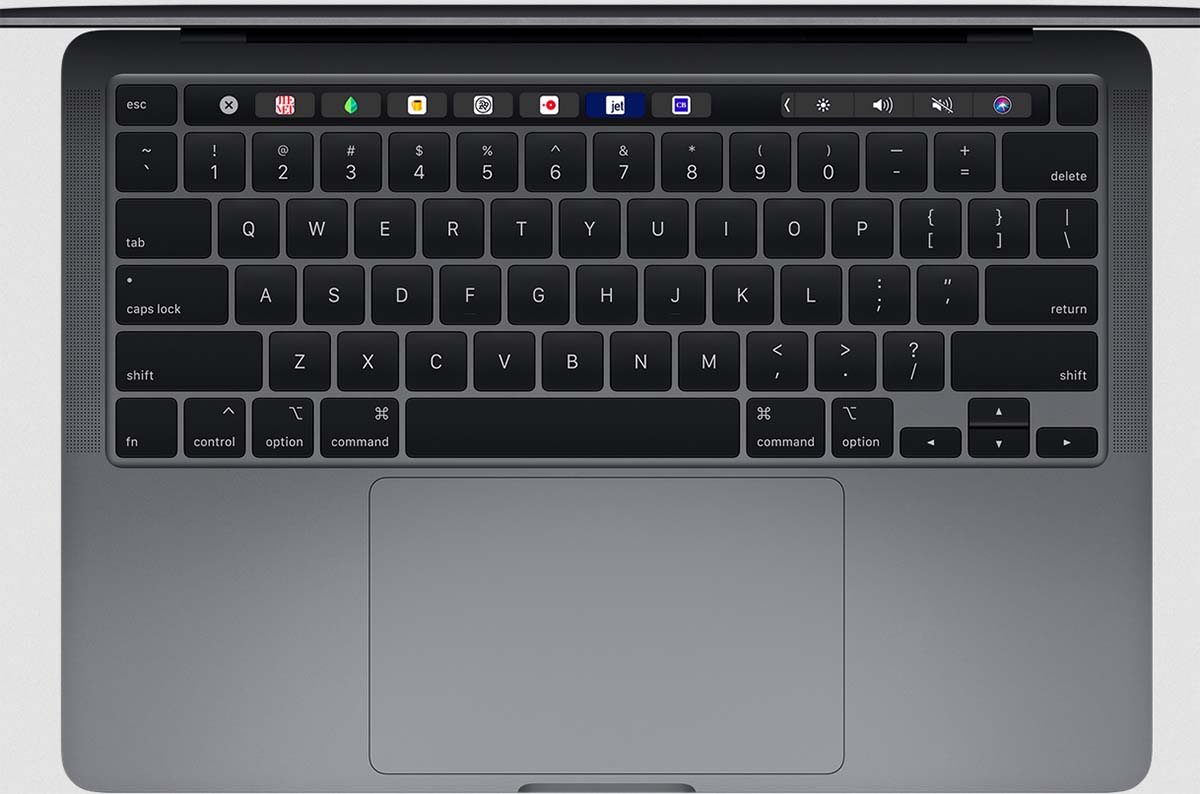
If you’re using a MacBook, enabling the keyboard backlight is usually very simple. Apple builds the controls directly into macOS.
Here are the three main ways to turn on the keyboard light.
Using Keyboard Brightness Keys
On many MacBook models, you’ll see keyboard brightness icons on the function keys.
Typically:
To turn on the keyboard light:
If your function keys control media instead, press:
Fn + F6
Newer MacBooks may not show dedicated brightness keys. In that case, use Control Center instead.
Using Control Center (macOS Big Sur and Later)
If your Mac doesn’t have physical brightness keys:
If you don’t see the Keyboard Brightness option, your Mac model may not support backlighting — or it may need to be enabled in settings.
Adjust Automatically in Low Light
MacBooks can automatically turn on the keyboard backlight when the room gets dark.
To check or enable this:
Enable the automatic adjustment option if available.
You can also choose how long the keyboard light stays on after inactivity.
Troubleshooting: If the Keys Don’t Respond
If pressing brightness keys does nothing:
If the brightness slider is missing entirely, your specific MacBook model may not include keyboard backlighting.
Brand-Specific Guide: How to Activate Backlit Keyboard
Different brands use slightly different shortcuts. If you’re unsure which key to press, this quick brand guide will help you turn on the keyboard light fast.
HP Laptops
Common Shortcut Keys
Most HP laptops use one of these combinations:
Look for the keyboard icon with light rays on the key.
Press once to turn it on.
Press again to increase brightness.
Press again to turn it off.
BIOS Method (If Shortcut Doesn’t Work)
Dell Laptops
Common Shortcut Keys
Most HP laptops use one of these combinations:
Some Dell models also allow pressing the key without Fn.
Each press cycles through:
Off → Dim → Bright
BIOS Method (If Shortcut Doesn’t Work)
Lenovo Laptops
Common Shortcut Keys
On many Lenovo laptops, especially ThinkPads:
Press once → Low
Press again → High
Press again → Off
This is one of the simplest implementations.
Lenovo Vantage Software
ASUS Laptops
Common Shortcut Keys
Most ASUS laptops use:
Press multiple times to adjust brightness levels.
Armoury Crate (Gaming Models)
On gaming laptops like ASUS ROG:
RGB models offer more advanced controls than standard laptops.
Acer Laptops
Common Shortcut Keys
Most Acer laptops use:
Look for the backlight icon on the key.
Press repeatedly to cycle through brightness levels.
If nothing happens:
How to Enable Keyboard Light on Gaming Laptops (RGB Models)
Gaming laptops are a different beast.
If you’re using a gaming machine, your keyboard probably has RGB lighting — which means more than just on/off. You can change colors, effects, brightness, and even lighting zones.
In most cases, you’ll need the brand’s dedicated software to fully control it.
Using Dedicated Software
Here’s how major gaming brands handle keyboard lighting:
Armoury Crate (ASUS ROG / TUF)
Some ASUS models also allow basic brightness control using Fn + F7, but full RGB customization requires Armoury Crate.
MSI Center (MSI Gaming Laptops)
MSI keyboards often support:
Alienware Command Center (Alienware Laptops)
You can even create lighting profiles tied to specific games.
Razer Synapse (Razer Laptops)
Razer devices usually offer advanced brightness and effect controls.
Customizing Colors and Brightness
Most gaming laptops let you:
If your RGB keyboard isn’t lighting up:
Gaming keyboards offer far more control than standard backlit keyboards — but they also rely heavily on software.
Keyboard Backlight Not Working? (Troubleshooting Guide)
Pressed the shortcut… and nothing happened?
Don’t worry. In most cases, it’s a small setting — not a hardware failure.
Here’s how to fix it step by step.
1. Check If Your Laptop Supports It
This sounds basic. But it’s the most common issue.
Make sure your exact laptop model includes:
Check:
No icon + no mention in specs?
Your laptop probably doesn’t support it.
2. Update Keyboard Drivers
Outdated drivers can sometimes block keyboard features.
How to update:
You can also visit your laptop manufacturer’s website and download the latest drivers manually.
If you’re using a gaming laptop, update the lighting control software too.
3. Enable in BIOS
Sometimes the keyboard light is disabled at the firmware level.
To check:
Look for:
Enable it, then Save & Exit (usually F10).
4. Disable Battery Saver Mode
Some laptops automatically turn off the keyboard backlight when:
To check in Windows:
Plugging in your charger can also restore keyboard lighting.
5. Check Ambient Light Sensor Settings
Certain laptops (especially premium models and MacBooks) adjust keyboard brightness automatically.
If you’re in a very bright room, the keyboard light may stay off.
Try:
6 Restart Your Laptop
Yes, the classic fix.
A simple restart can:
If none of these steps work, and your laptop definitely supports a backlit keyboard, you may need a BIOS update, or a hardware check at a service center.
Why Some Laptops Don’t Have Keyboard Backlight
If you’ve tried everything and still can’t find a way to turn on the keyboard light, there’s a simple possibility:
Your laptop may not have a backlit keyboard.
Here’s why that happens.
1. Budget Models Skip It
Entry-level and budget laptops often remove keyboard lighting to reduce cost. It’s considered a premium feature.
Even within the same laptop series, some variants include backlighting while others don’t.
2. Regional Variants Differ
Some manufacturers release different configurations depending on the country or retailer.
One version may include a backlit keyboard.
Another version — same model name — may not.
Always check your exact model number.
3. Hardware Limitation
Backlighting isn’t something you can enable through software if the hardware isn’t there.
If:
Then the keyboard likely doesn’t include LED lighting at all.
Can You Add Backlight to a Non-Backlit Keyboard?
Short answer: Not practically.
Replacing the entire keyboard with a backlit version is usually:
If keyboard lighting is important to you, the realistic solution is using an external backlit keyboard, or choosing a laptop that includes the feature.
Final Thoughts
Turning on your keyboard backlight is usually simple:
If that doesn’t work, check BIOS, power settings, or manufacturer software.
The key thing?
Every laptop handles it slightly differently — but once you know where to look, it’s easy.
Now you know exactly how to turn on keyboard backlight, how to enable keyboard light on Windows and Mac, and what to do if it’s not working.